

Researching threat actors in Recon
Villain Vault is where you research the groups known to exploit vulnerabilities and run cyber operations — and see how they relate to your own environment. It combines intelligence gathered by Cytidel with vulnerability data and real-world threat activity, so you can quickly understand how specific actors operate, what they target, and which vulnerabilities they're linked to.
Villain Vault has two pages, switchable from the Villain Vault menu:
- Threat Landscape — a big-picture dashboard of trending threat-actor activity, mappings, and your exposure.
- Threat Actors — a searchable directory of every known actor and their aliases.
Jump to a section:
Threat Landscape
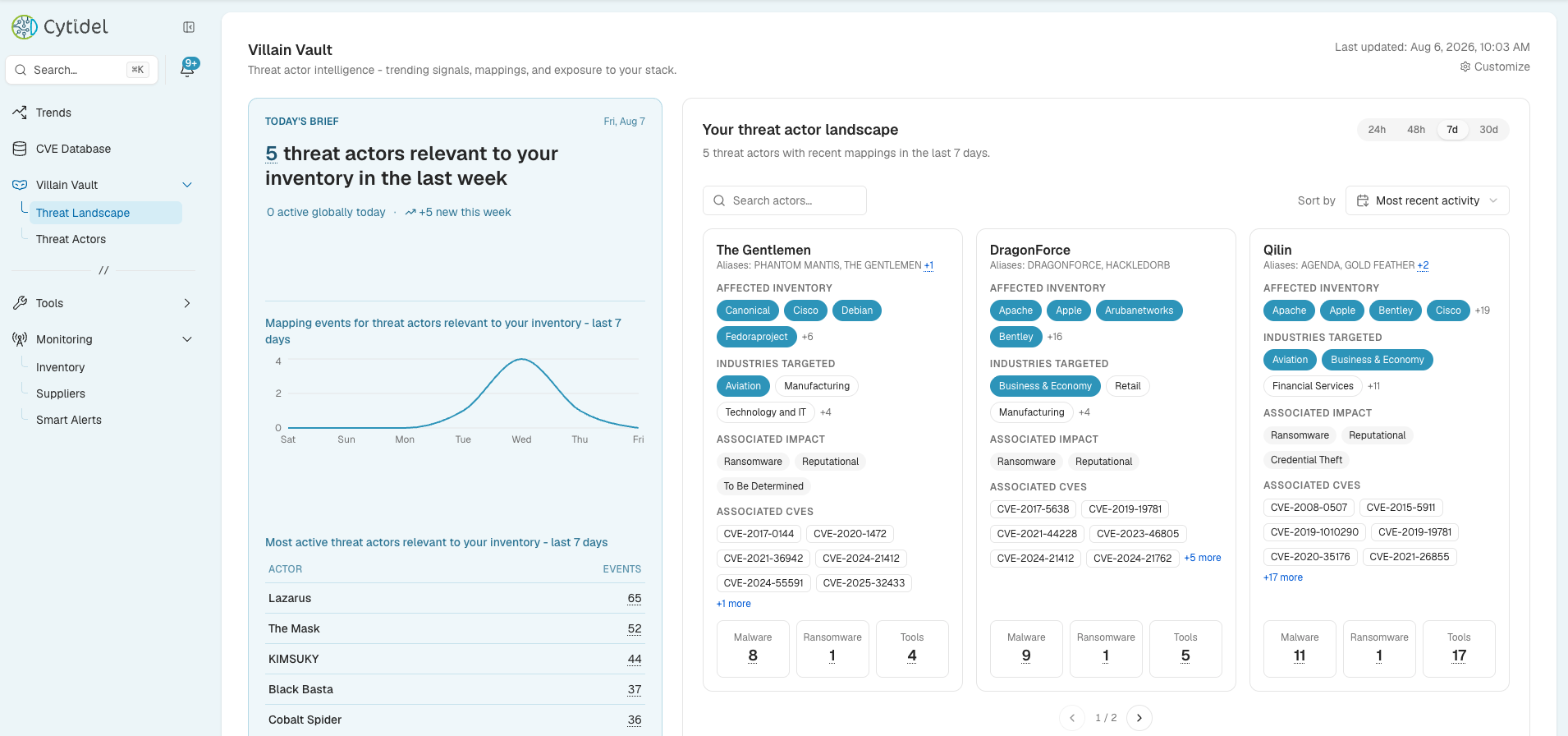
The Threat Landscape page gives you an at-a-glance view of what threat actors are doing and how it maps to your stack. Use the 24h / 48h / 7d / 30d controls to change the window, and Customise to choose which panels appear. Panels include:
- Today's brief — the threat actors relevant to your inventory today, how many are active globally, and the most active actors over the last 7 days.
- Your threat actor landscape — actors with recent mappings, each summarised with the inventory they affect, the industries they target, their associated impact and CVEs, and their malware, ransomware, and tool counts.
- Recent activity — headline counts (active threat actors, linked CVEs, vendors affected, industries affected) versus the previous period, plus a live feed of recent mapping events.
- Recent victims — recent ransomware claims (sourced from Ransomware.Live), viewable as cards or a table and filterable by country and industry.
- Threat ecosystem — all-time rankings of the ransomware and malware most used by threat actors, with an In my inventory toggle to focus on the ones overlapping your stack.
- Top targeted industries — the industries threat actors target most.
- Active threat groups — a table of actors active in the selected window, filterable by inventory, industry targeted, vendor targeted, ransomware, malware, alias, or associated CVE.
- Threat origin — a world map showing where threat actors (and victims) are concentrated, with a country leaderboard you can click to focus.
- What we track — all-time totals across the knowledge base (threat actors, malware families, CVEs linked, ransomware, tools, aliases, and news), each with its recent change.
Threat Actors
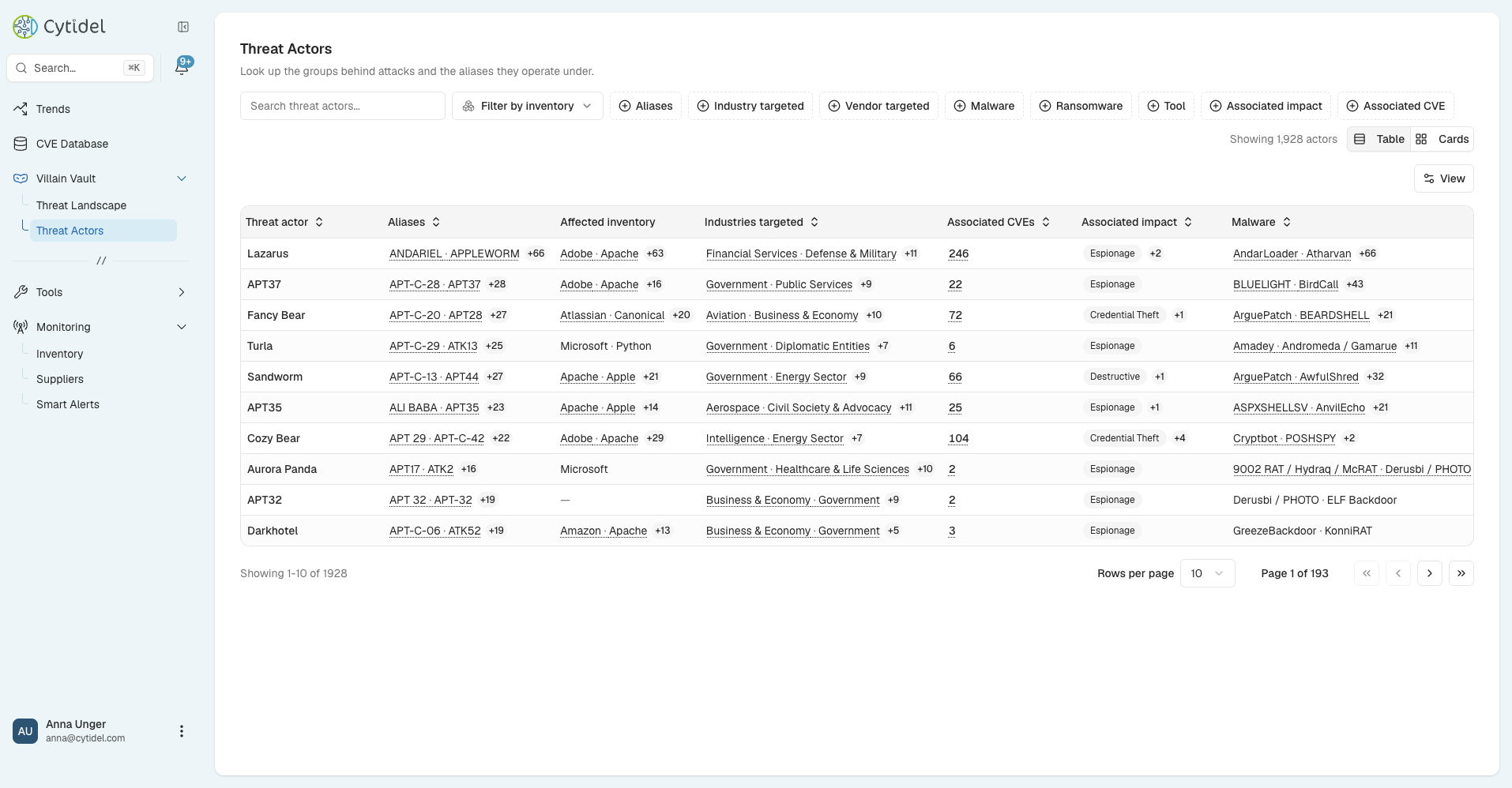
The Threat Actors page is a searchable directory of every known actor and their aliases.
Searching for a threat actor
- Go to Threat Actors (under Villain Vault).
- Enter a threat actor's name, or any known alias, in the search bar.
- Select a result to open its profile.
Actors are organised by their primary name, as defined by Cytidel. Searching by an alias still returns the correct actor — it just appears under its primary name in the results.
Filtering and views
Narrow the list with filters for inventory, aliases, industry targeted, vendor targeted, malware, ransomware, tool, associated impact, and associated CVE. Switch between Table and Cards with the toggle. In table view you'll see each actor's aliases, affected inventory, industries targeted, associated CVEs, associated impact, and malware / ransomware / tool counts.
Focusing on your environment
Both pages let you filter to your inventory — via Filter by inventory on the Threat Actors page, and the In my inventory / affected-inventory cues on the Threat Landscape. This shows which actors overlap with the vendors and products you track, so you can focus on the groups most relevant to you rather than the whole global picture. (See the Building your inventory guide for how this works.)
Opening a threat actor profile
Selecting any actor opens its profile — a consolidated view of the group's background, intelligence (aliases, tools, malware, ransomware), targeting patterns, associated CVEs, and related news. For a full walkthrough of that page, see the Threat actor details guide.
Need a hand? Email us at [email protected].
Updated 2 months ago