

What are Smart Alerts?
Smart Alerts help Recon filter through the noise and notify you only about the things that matter to your organisation. Instead of monitoring everything by hand, Smart Alerts continuously track Cytidel's intelligence and let you know when something matches the conditions you've set.
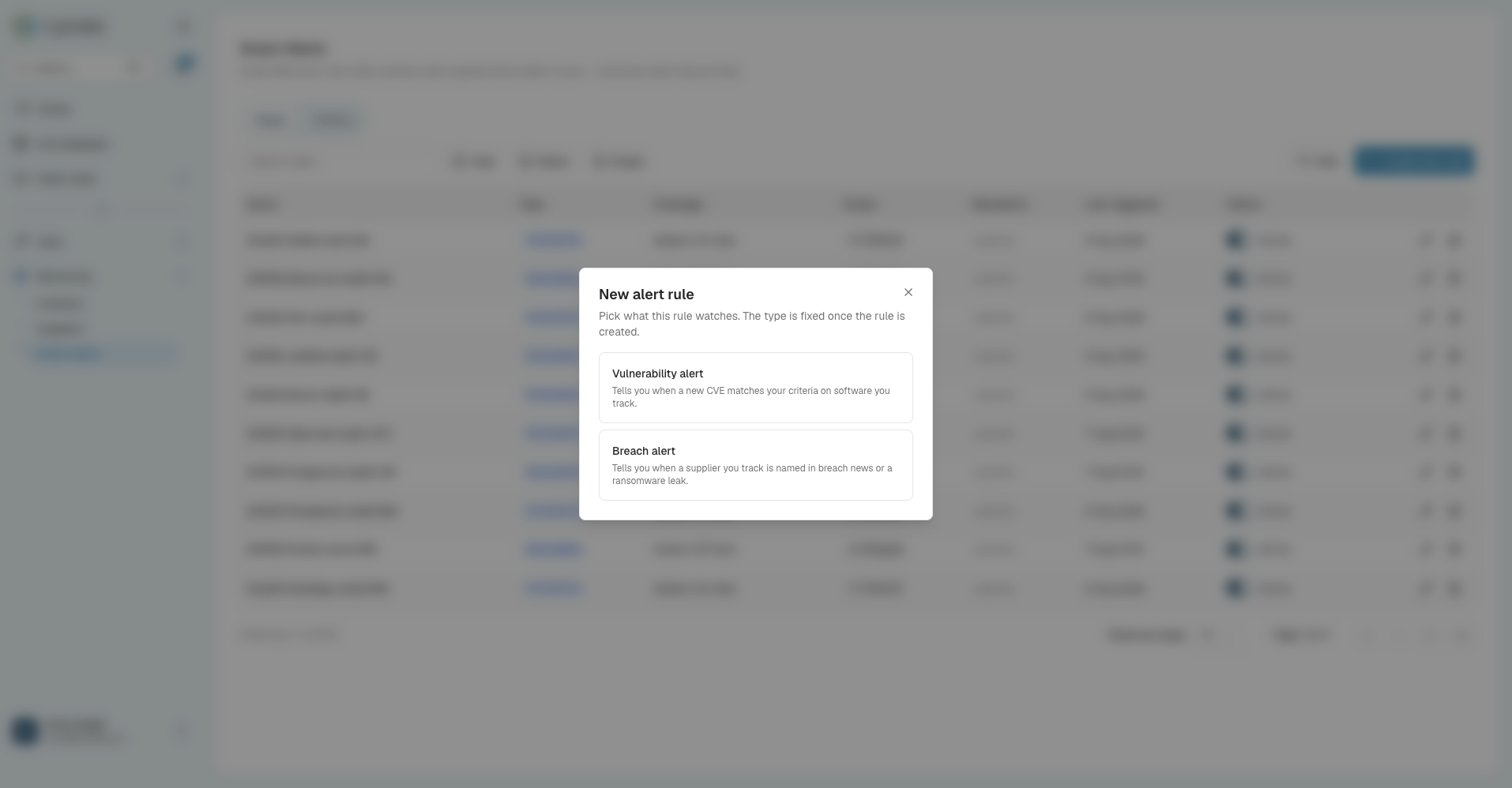
There are two kinds of Smart Alert rule:
- Vulnerability alert — tells you when a new CVE matches your criteria on software you track.
- Breach alert — tells you when a supplier you track is named in breach news or a ransomware leak. (Breach alerts replace the old standalone Third-Party Supplier Monitoring.)
You choose the type when you create a rule, and it's fixed once the rule is created:
Jump to a section:
- How Smart Alerts work
- Why use Smart Alerts
- Create a vulnerability alert
- Create a breach alert
- Managing your rules
- Reviewing triggered alerts
- How you're notified
- Troubleshooting
How Smart Alerts work
Smart Alerts monitor Cytidel's intelligence in real time — 300,000+ CVEs, 40,000+ vendors, threat-intelligence signals, and breach and ransomware reporting. You create rules that describe what you care about; when something new matches a rule, Recon highlights it in the platform (under Alert History) and notifies the people or systems you choose, by email or webhook.
Why use Smart Alerts
Security teams face a huge volume of vulnerability and breach information, most of it irrelevant to any one organisation. Smart Alerts cut that noise by surfacing only what matches your rules. With Smart Alerts you can:
- Monitor what matters — track vulnerabilities on the software you run, and breaches involving the suppliers you depend on.
- Respond faster — get early warning as new risks emerge.
- Reduce alert fatigue — stop scanning through large volumes of irrelevant alerts.
- Stay confident — make sure you don't miss something critical to your environment.
To create either type of rule, go to Monitoring > Smart Alerts, open the Rules tab, and click Create new rule. Pick Vulnerability alert or Breach alert — a plain-English summary at the top of the builder updates as you go, so you can always see exactly what your rule will do.
Create a vulnerability alert
A vulnerability alert fires when a new CVE matches your criteria on software you track. It has four steps.
1. Details
- Rule name — appears in the leaderboard, alert digests, and notification subject lines, so make it descriptive.
- Visibility — Personal (visible only to you) or Org (shared with your team and routable to other members).
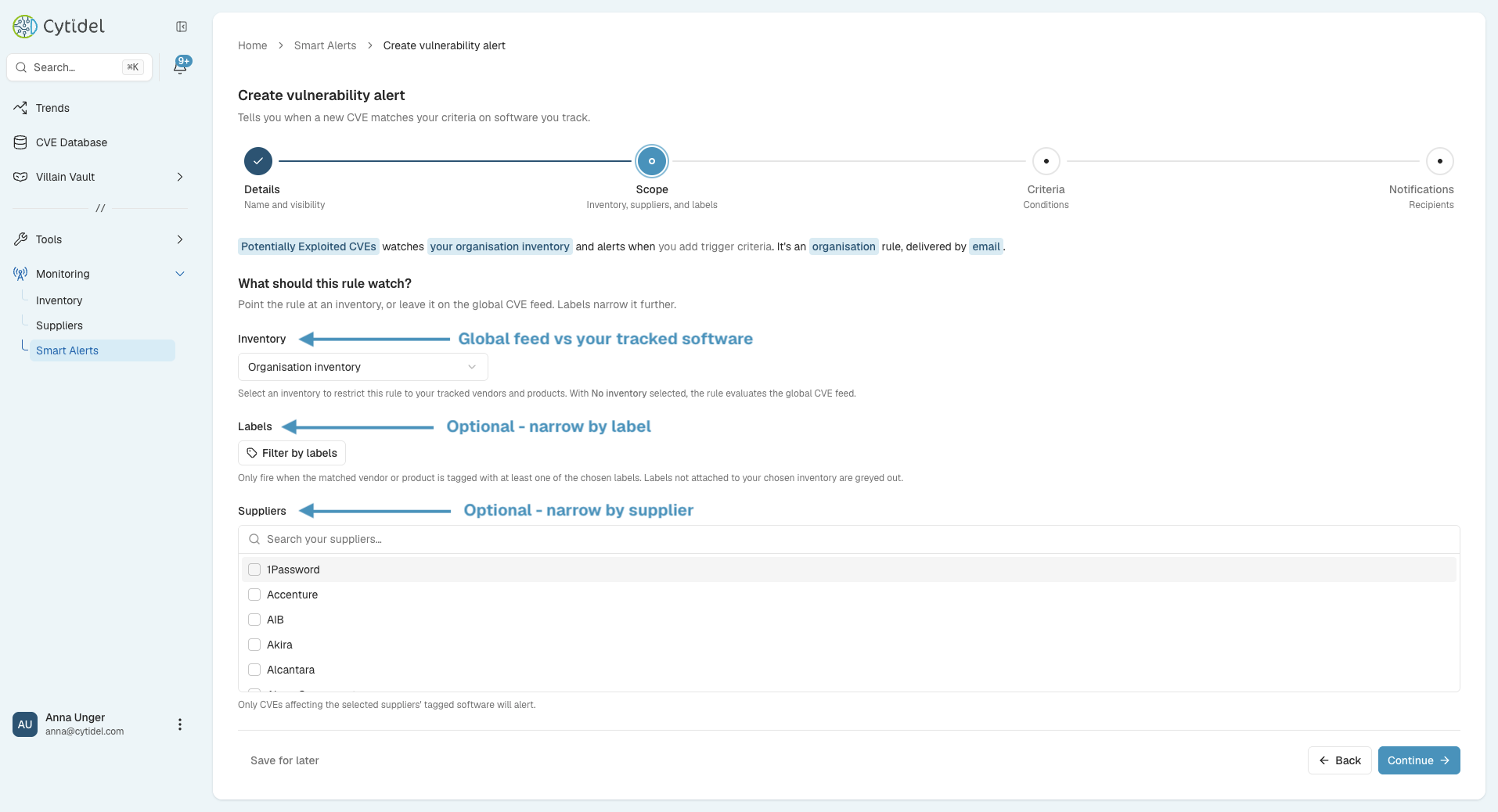
2. Scope
Decide what the rule watches:
- Inventory — restrict the rule to the vendors and products you track. The options here depend on the rule's visibility (set in step 1):
-
A Personal rule can watch No inventory (global), your Personal inventory, or the Organisation inventory.
-
An Organisation rule can watch No inventory (global) or the Organisation inventory.
Choosing No inventory (global) evaluates the entire global CVE feed rather than your tracked software.
-
- Labels (optional) — narrow further so the rule only fires when the matched vendor or product carries one of the labels you choose.
- Suppliers (optional) — limit the rule to a supplier's tagged software, so only CVEs affecting that supplier's products will alert.
Choose what the rule watches — a single Monitor option:
- All my inventory — every vendor and product you track.
- By label — only software tagged with a label you choose.
- By supplier — only the software you've tagged to a specific supplier (Recon resolves the supplier to its tagged software).
- Entire CVE feed — the whole global CVE feed, not limited to your inventory.
(Labels and supplier tags are set on your inventory — see the Building your inventory guide.)
3. Criteria
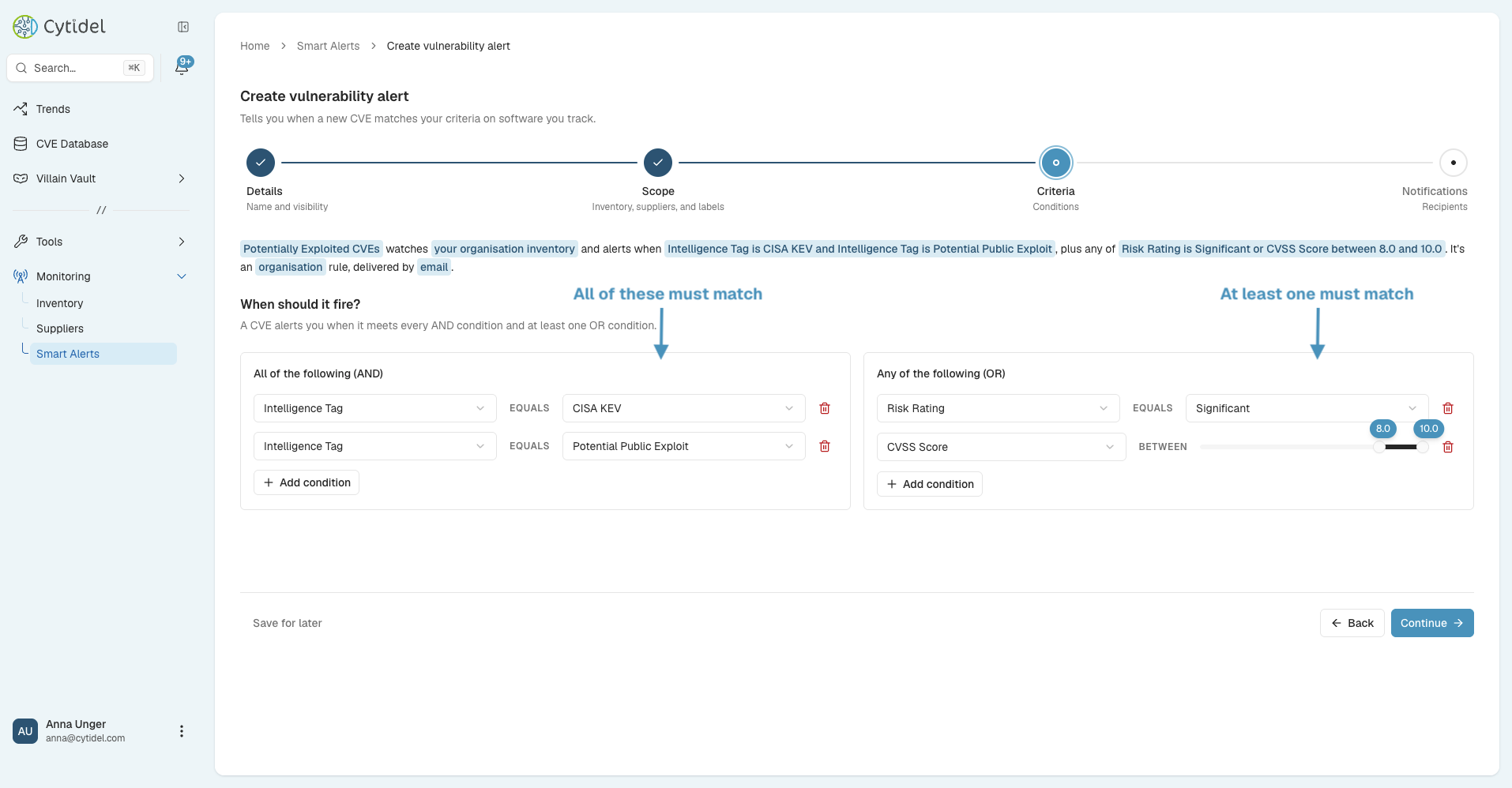
Define the conditions that trigger the alert, in two groups. A CVE alerts you when it meets every condition in the AND group and at least one condition in the OR group:
- All of the following (AND) — every condition must be met.
- Any of the following (OR) — at least one must be met.
Conditions can use intelligence tags (such as CISA KEV, Potential Public Exploit, or Known Threat Actor), risk rating, CVSS score (as a range), and EPSS score (as a range). Click Add condition to add more. To start quickly, you can apply a common-pattern template and edit it.
4. Notifications
Choose who gets notified, then click Create rule:
- Email — email a notification each time the rule matches, routed to the team members you select.
- Webhook — send each match to one of your registered webhook endpoints (Teams, Slack, ServiceNow, and so on). See the Sending alerts to webhooks guide.
Create a breach alert
A breach alert fires when a supplier you track is named in breach news or a ransomware leak. It has three steps.
1. Details
Name the rule and choose Personal or Org visibility, exactly as for a vulnerability alert.
2. Monitoring
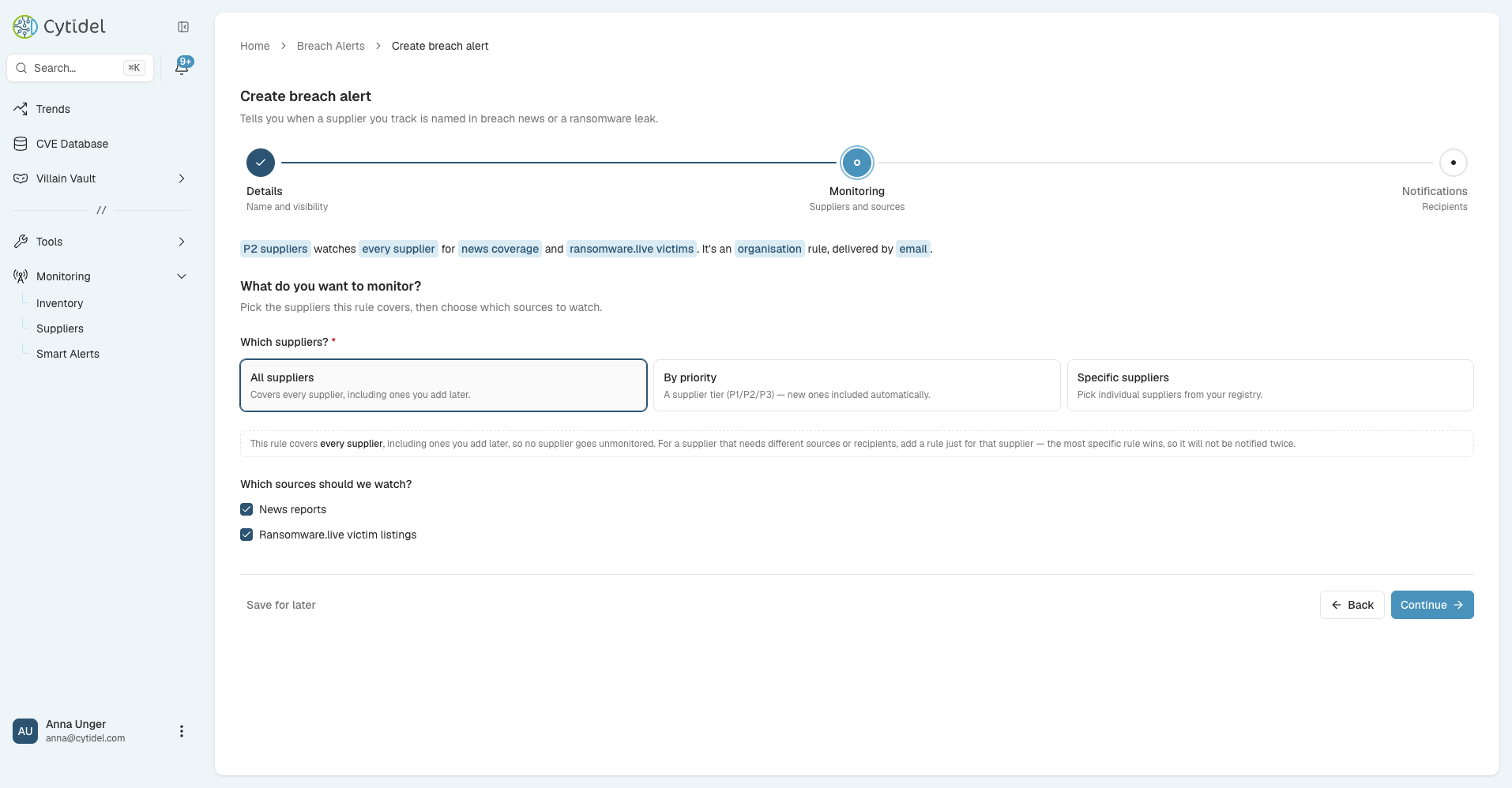
Choose what to monitor:
- Which suppliers? — All suppliers (covers every supplier, including ones you add later), By priority (a supplier tier — P1 Critical / P2 Important / P3 Standard — with new ones included automatically), or Specific suppliers (pick individual suppliers from your registry).
- Which sources should we watch? — News reports and Ransomware.live victim listings.
Suppliers are managed under Monitoring > Suppliers — see the Monitoring third-party suppliers guide.
3. Notifications
Choose who gets notified, then click Create rule: Send email notification (routed to the recipients you select) and/or Send to webhook.
Managing your rules
The Rules tab lists every rule you can see, showing each rule's Type (Vulnerability or Breach), Coverage, Scope (Personal or Org), Recipients, and Last triggered. From here you can:
- Switch between All, CVE, and Breach rules using the segmented control at the top (each with a count), and search or filter by Status and Scope.
- Toggle a rule's Status active or inactive — an inactive rule keeps its configuration but stops firing.
- Show or hide columns with the View button.
- Click Create new rule to add another.
Reviewing triggered alerts
The History tab shows every time a rule has fired — across both vulnerability and breach alerts. You'll see the rule name, the matched CVE or supplier, the matched vendors and products (with an indicator when the match came from your inventory), and the date triggered. You can search, filter by inventory match or date, adjust columns with View, and Download the list for reporting.
How you're notified
Email alerts come from Cytidel Alerts ([email protected]) and go to the recipients set on the rule. The two rule types produce different emails:
- Vulnerability alerts arrive with the subject "Smart Alert Notifications", styled as a RECON Alerts Daily Update that groups the CVEs matching your rules. Each entry shows the rule name, the CVE ID (linked), the matched vendors and products, the risk rating, EPSS and CVSS scores, the intelligence tags, a description, and reference links — with a View in RECON button to open the full details.
- Breach alerts arrive with the subject "Supplier Alert", showing the supplier(s) named, their priority level, what triggered the alert, and a summary of the article — with a View article button to read the source.
If you've set up webhooks, matching alerts are pushed to those destinations too — see the Sending alerts to webhooks guide.
Troubleshooting
I'm not receiving alerts from a rule. Check the rule's Status is active, that its conditions or supplier/source selection aren't so narrow that nothing matches, and — for vulnerability alerts — that the Monitor option lines up with software you actually track (for example, if it's set to By supplier, the software must be tagged to that supplier). Make sure recipients are set.
I'm getting too many alerts. For vulnerability alerts, narrow the Monitor option (e.g. All my inventory or By supplier rather than Entire CVE feed), tighten your criteria (move conditions into the AND group), or raise your risk/CVSS/EPSS thresholds. For breach alerts, narrow the suppliers (by priority or specific suppliers) or the sources watched.
I created a rule but see no matches yet. Alerts only fire when something new actually meets the rule, so a specific rule may simply have nothing to report yet. Last triggered on the Rules tab shows recent activity.
My email alerts aren't arriving. Confirm email is selected on the rule, that recipients are set, and check your spam folder for messages from [email protected].
Still stuck? Email us at [email protected].
Updated 2 months ago