

Sending alerts to webhooks
Webhooks push your Smart Alert notifications straight into the tools your team already uses - Microsoft Teams, Slack, or any system that accepts an incoming HTTP request (ServiceNow, Jira etc.). Instead of waiting on email, critical alerts arrive the moment they match your rules.
Setup takes a couple of minutes and you can test it before you save. Jump to the section for the tool you want:
How it works
When something matches a Smart Alert rule — a new CVE for a vulnerability alert, or a supplier incident for a breach alert — Recon sends the alert to every webhook attached to that rule. You can attach several webhooks to one rule, so a single alert can reach multiple destinations at once.
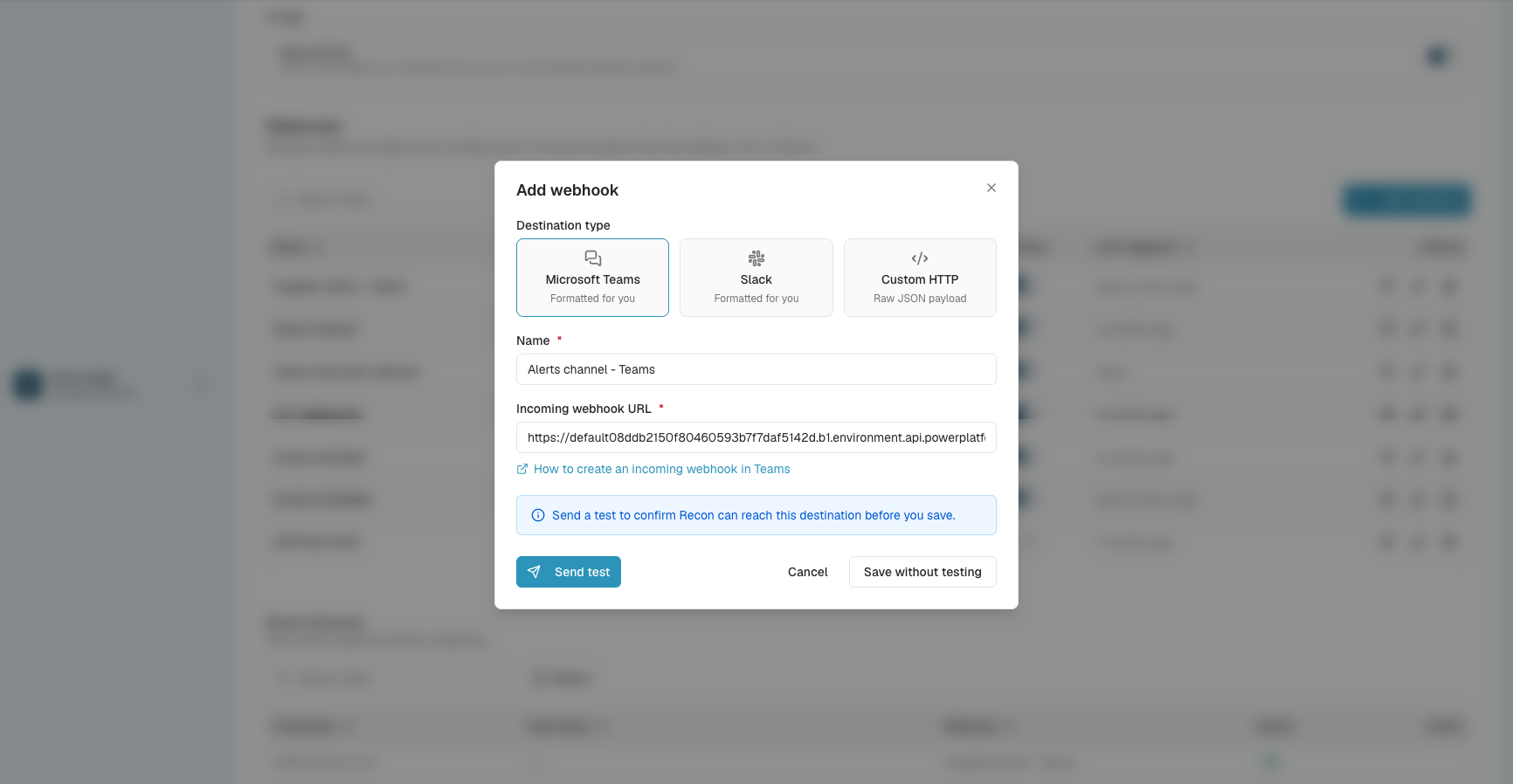
Send alerts to Microsoft Teams
- In Teams, create an incoming webhook for the channel you want alerts in, and copy the URL. (The Add webhook modal links to Teams' step-by-step instructions.)
- In Cytidel, go to Settings > Notifications > Webhooks > + Add webhook and choose Microsoft Teams.
- Give it a name and paste the incoming webhook URL.
- Click Send test to confirm the message reaches your channel, then save.
- Turn it on for your alert rules.
Send alerts to Slack
- In Slack, create (or open) an app at api.slack.com/apps, enable Incoming Webhooks, click Add New Webhook to Workspace, pick your channel (e.g.
#security-alerts), and copy the URL. (The Add webhook modal links to Slack's instructions.) - In Cytidel, go to Settings > Notifications > Webhooks > + Add webhook and choose Slack.
- Give it a name and paste the incoming webhook URL.
- Click Send test to confirm the message reaches your channel, then save.
- Turn it on for your alert rules.
Send alerts to any other tool (Custom HTTP)
Use a Custom HTTP webhook to send alerts to ticketing, SIEM, or any endpoint that accepts an HTTP request - for example ServiceNow or Jira. Cytidel sends a raw JSON payload that your system processes however you like (such as opening a ticket).
- Go to Settings > Notifications > Webhooks > + Add webhook and choose Custom HTTP.
- Fill in:
- Name — something you'll recognise, e.g. "ServiceNow Production".
- URL — the endpoint that will receive the request.
- Method — POST, PUT, or PATCH, depending on what your system expects. Defaults to POST.
- Signing secret (optional) — recommended for production; see Securing Custom HTTP webhooks.
- Click Send test to confirm Recon can reach the endpoint, then save.
- Turn it on for your alert rules.
Securing Custom HTTP webhooks
Set a signing secret and Recon signs each payload with HMAC-SHA256, adding the signature to the X-Cytidel-Signature header — so your endpoint can confirm the request genuinely came from Cytidel. To verify, compute the HMAC-SHA256 of the raw request body using your secret as the key, and compare it to the header value.
What the payload looks like
The payload below is for a vulnerability alert. It contains an alert ID, a timestamp, and a CVEs array. Each CVE entry includes its ID, description, risk rating, EPSS and CVSS scores, matched vendor products, references, and intel tags.
{
  "IntelAlertId": "a2e17b35-ced7-4d28-b2dd-9b3c92880944",
  "Timestamp": "2026-04-16T16:21:24.25189Z",
  "CVEs": [
    {
      "CveId": "CVE-2024-0001",
      "Description": "Example vulnerability description.",
      "RiskRating": "Significant",
      "EpssScore": 0.85,
      "CvssScore": 8.5,
      "MatchedVendorProducts": { "Microsoft": ["Windows 11", "Exchange Server"] },
      "References": ["https://nvd.nist.gov/vuln/detail/CVE-2024-0001"],
      "Tags": { "CISA": true, "PPE": true, "ZeroDay": false }
    }
  ]
}
Use IntelAlertId to deduplicate if you ever receive the same event twice (for example, after a retry). For the full field list and tag reference, click View payload format in the Add webhook modal.
Turn it on for your alert rules
A saved webhook only fires once it's attached to a rule. When creating or editing a Smart Alert rule, tick the Webhook option in the Notifications step, then tick each webhook you want this rule to notify. Save the rule.
Need a new destination? Click + Add a webhook to create one without leaving the rule. Any disabled webhook shows an Enable link so you can switch it back on inline.
Managing your webhooks
From Settings > Notifications > Webhooks you can:
- Edit a webhook's name, URL, or secret.
- Enable or disable it with the status toggle. Disabled webhooks stop receiving alerts but keep their configuration.
- Send a test to check it's still reachable.
- Delete one you no longer need — this also removes it from any rules that reference it.
The table also shows when each webhook last triggered.
Troubleshooting
I'm not receiving webhooks. Check the status toggle is on and the URL is correct. For Custom HTTP endpoints, make sure a firewall isn't blocking Cytidel and that your endpoint returns a 2xx response.
The test works but live alerts don't arrive. The test fires immediately; live alerts only fire when something actually matches your rule (a CVE, or a supplier incident). Double-check the rule's conditions in Smart Alerts and that the webhook is ticked on that rule.
I'm getting duplicate events. This can happen after a retry. Use the IntelAlertId field to deduplicate on your side (Custom HTTP only).
How do I confirm a request is really from Cytidel? Set a signing secret on your Custom HTTP webhook and verify the X-Cytidel-Signature header (see Securing Custom HTTP webhooks).
Updated 2 months ago